> ## Documentation Index
> Fetch the complete documentation index at: https://docs.appsignal.com/llms.txt
> Use this file to discover all available pages before exploring further.
# Data exports
AppSignal allows you to generate exports of your apps exception and performance data quickly and conveniently, enabling you to analyze exception and performance data with your preferred third-party tools.
## This documentation explains how to:
* [Export charts in AppSignal](#how-to-export-charts)
* [Export performance and exception data in AppSignal](#how-to-export-data)
* [Manage and download CSV data exports in AppSignal](#how-to-manage-exported-data)
## Exportable data
You can export the following data in the following formats:
| Data Type | Page/Feature | Export Formats |
| ----------- | ---------------------------- | -------------- |
| Exceptions | Exception Incidents | CSV |
| | Exception Incident Samples | CSV |
| Performance | Performance Incidents | CSV |
| | Performance Incident Samples | CSV |
| | Performance Actions | CSV |
| Charts | Chart Data | PNG, JSON, CSV |
Note: All CSV exports are provided in gzipped format.
## How to export charts
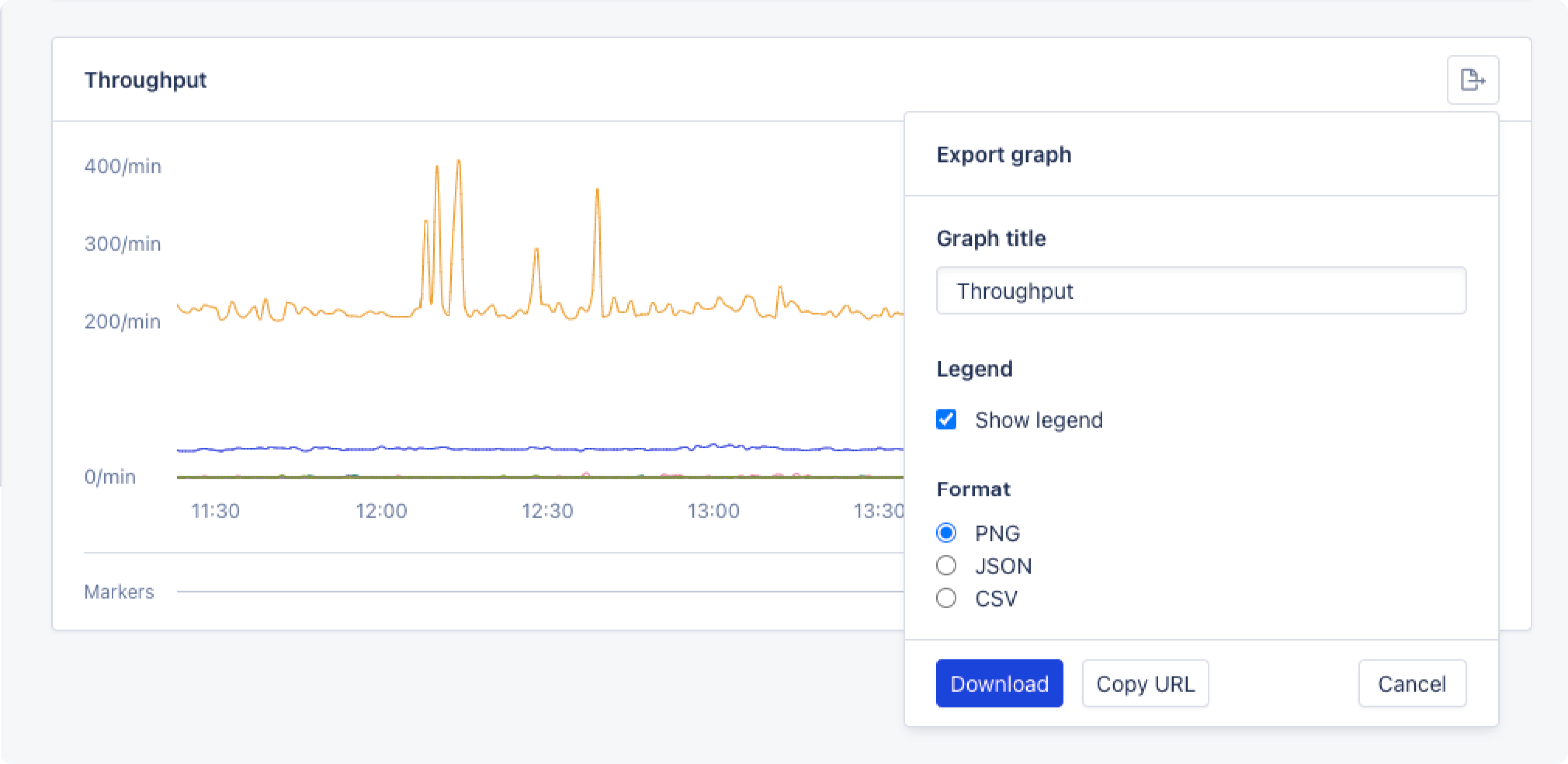
1. Click the "Share" button on the chart you'd like to export.
2. Configure the export's graph title desired format.
3. Click download, and save the generated export.
 ## How to export data
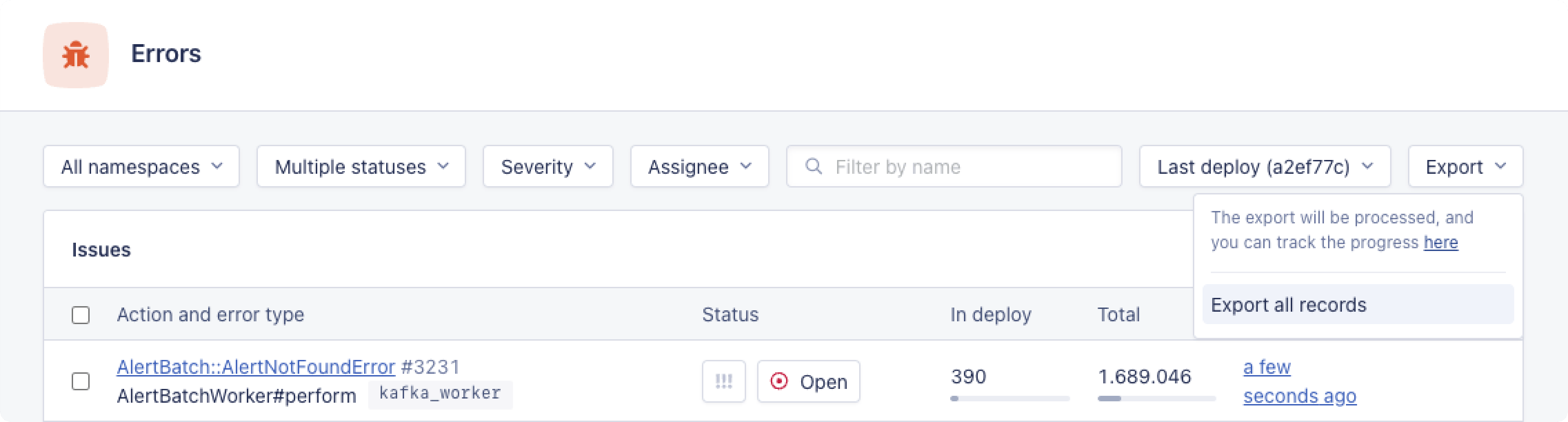
Data can be exported by clicking on the Export dropdown in the filter bar and selecting "Export all records."
## How to export data
Data can be exported by clicking on the Export dropdown in the filter bar and selecting "Export all records."
 Currently, it is not possible to export a filtered dataset.
This will generate an export which, once processed, can be downloaded from the exports overview.
## How to manage exported data
You can view your exports on your organization's Exports page.
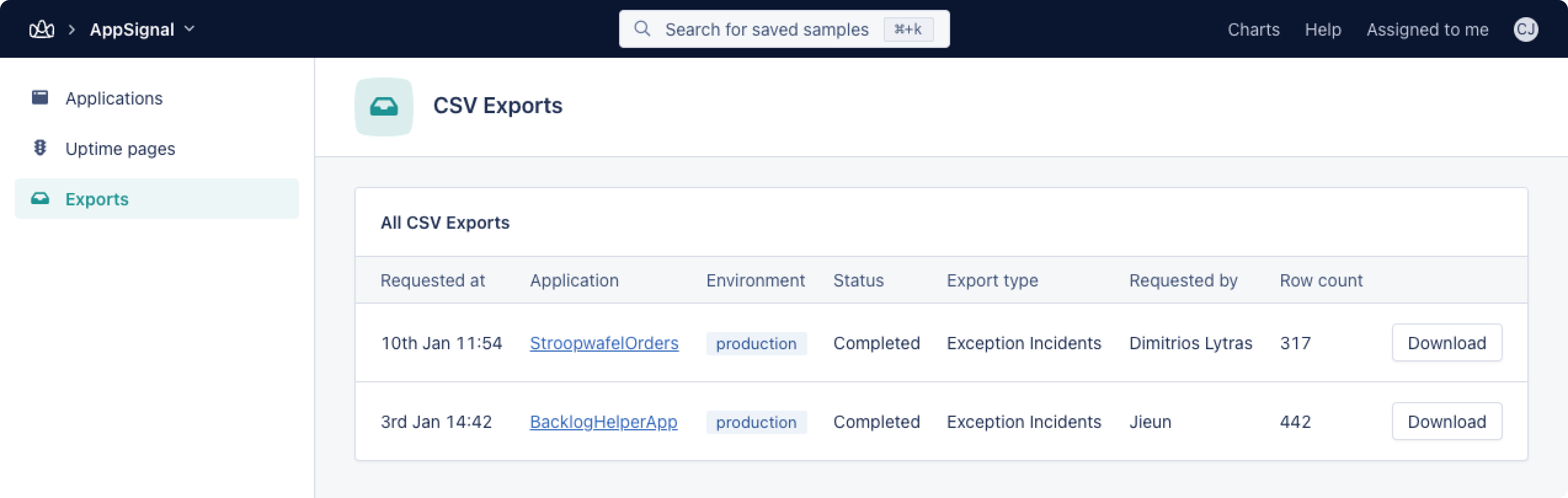
Here, all exports will be shown with their requested export date and time, application, environment, status, export type, requestor, and row count.
Export status update automatically, there is no need to refresh the page if you're waiting for a processing export to complete.
Currently, it is not possible to export a filtered dataset.
This will generate an export which, once processed, can be downloaded from the exports overview.
## How to manage exported data
You can view your exports on your organization's Exports page.
Here, all exports will be shown with their requested export date and time, application, environment, status, export type, requestor, and row count.
Export status update automatically, there is no need to refresh the page if you're waiting for a processing export to complete.