> ## Documentation Index
> Fetch the complete documentation index at: https://docs.appsignal.com/llms.txt
> Use this file to discover all available pages before exploring further.
# Public Status Page
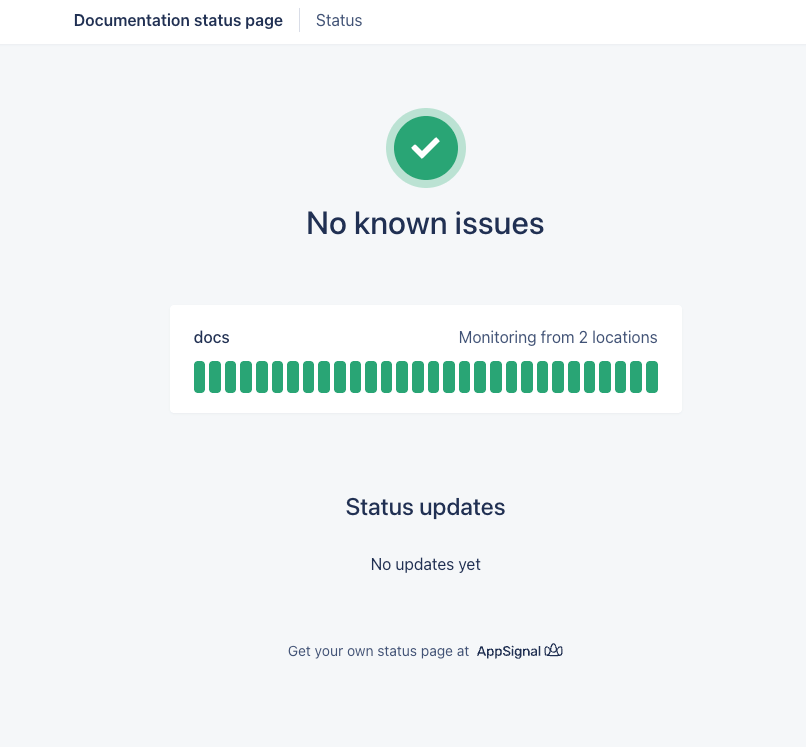
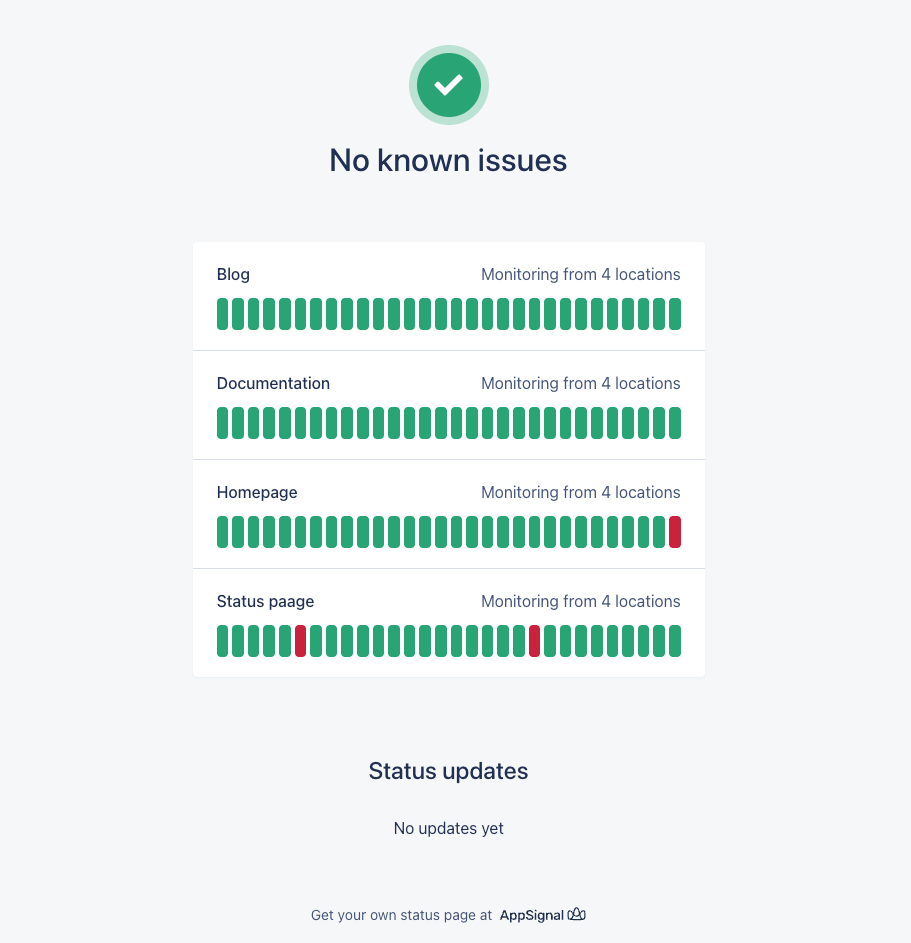
You can use our public status pages to expose your uptime monitoring metrics to your users and to keep your users informed during your application's downtime.
Set up
To set up a public status page **on a custom domain**, follow the instructions
on the [Custom
Domain](/uptime-monitoring/public-status-page/custom-domain) page
**before** continuing with the instructions in this page.
To set up a new public status page, [navigate to "Uptime Pages"](https://appsignal.com/redirect-to/organization?to=status_pages) and click on the "Add status page" button. You can select any of your existing uptime monitors to be displayed on the public status page.
To set up a public status page, you must have already created an [Uptime
Monitor](/uptime-monitoring/setup) in any of your applications.
When creating a public status page, you can choose a subdomain name for the public status page to be publicly available at, or you can choose a custom domain name.
For example, if you choose the subdomain "my-app", your public status page will be available at `https://my-app.appsignal-status.com`.
Once the subdomain is available, you can share it with your users so that they can see your application's current status.
It can take up to ten minutes for the public status page to be available at
the subdomain.
Status page updates
You can post a status update for your public status page by clicking on the "Add update" button.
When posting a status update, you can set the status to **Investigating**, **Identified** or **Recovering** to signal that an incident has started or is still taking place. This will report that your application is currently down.
Once your application's incident is over, use the **Resolved** state to let your users know that your application is back up.
 This documentation is built and hosted on [Mintlify](https://mintlify.com), a developer documentation platform.