Create a process monitor
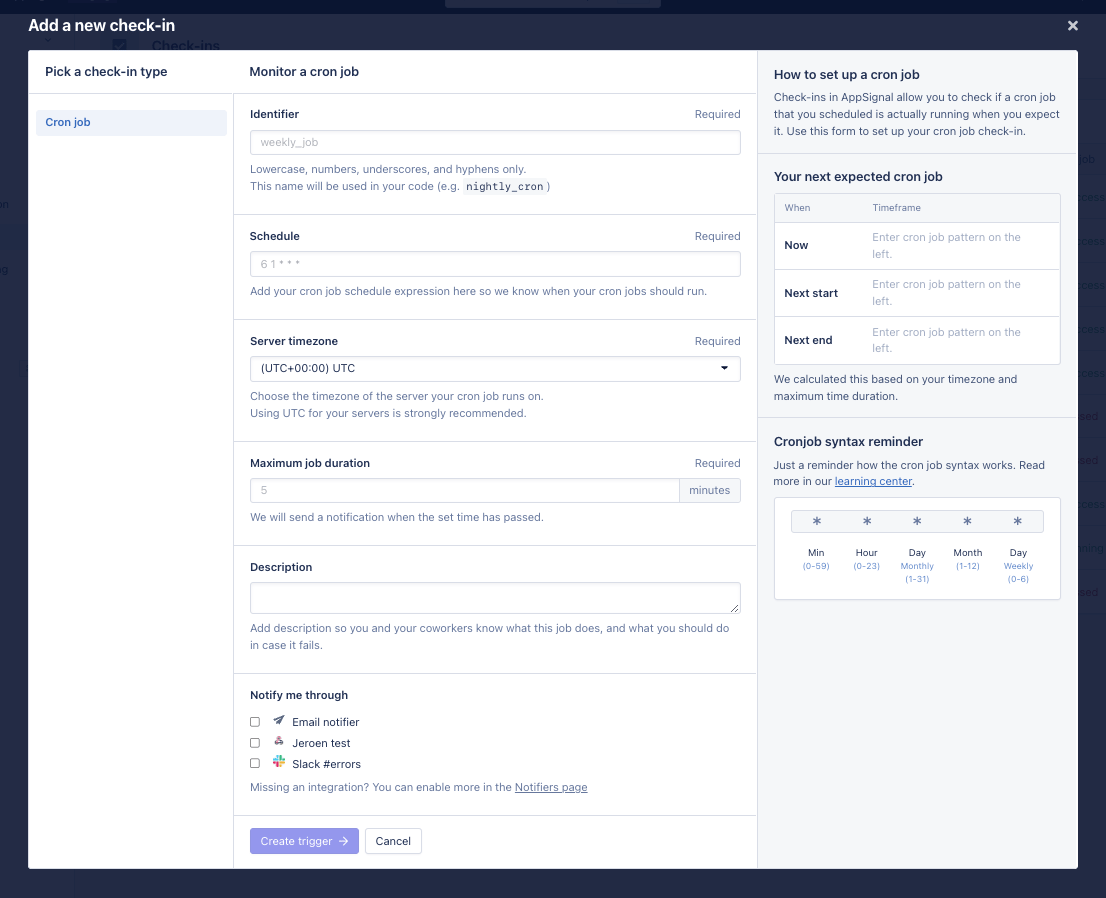
To create a process monitor, navigate to the Process Monitoring page and click “Add process monitor”. On the side, you can select whether to create a cron process monitor or a heartbeat process monitor. The following options can be set:- Identifier: A name to uniquely identify this process monitor in your application. You will use this name later when configuring your application to send process monitor events.
- Schedule: The schedule at which AppSignal expects to receive cron process monitor events, specified using crontab syntax. You can learn more about crontab syntax in our Crontab Learning Center article.
- Server timezone: The timezone to use to interpret the cron process monitor schedule. If you’re using
cronto run your scheduled jobs, then this should match your server’s configured timezone, as that is the timezonecronwill use. When in doubt, we recommend leaving this configuration option on its default value of UTC. - Maximum duration: The maximum run-time of your job in minutes. If a cron process monitor event is not received between the start time determined by the schedule and the end of the maximum job duration, or if a heartbeat process monitor event is not received within this duration from the last heartbeat process monitor event, it will be reported as failing.
- Description: An optional description of what this process monitor monitors.
- Notify me through: The channels that AppSignal should use to notify you of any missed or late process monitor occurrences.
View all process monitors
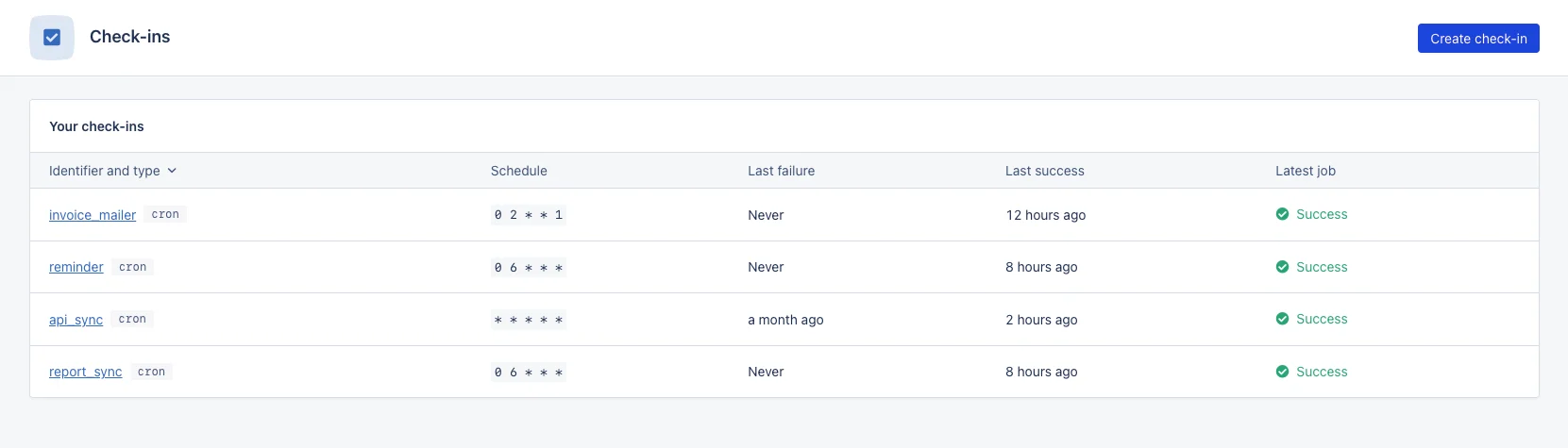
To view all of your app’s process monitors, go to the process monitors overview page. You can get there from the AppSignal app navigation sidebar: