Connect AppSignal to Jira with an OAuth 1.0 application link, and create Jira tickets for error incidents.
🗓 This documentation was reviewed in August 2026 to reflect Jira’s user
interface changes. If, at the time of reading, you find that our instructions
are no longer up-to-date, please let us know!
AppSignal connects to Jira over OAuth 1.0. Jira now also supports OAuth 2.0,
but AppSignal does not use it yet, so the setup below uses an OAuth 1.0
application link.
Jira is a tool used for project management. It centers around a ticketing system whereby features, chores, and bugs can be ticketed, tracked, and assigned.AppSignal can be integrated into Jira so you can ticket an error incident from its details screen. AppSignal never creates Jira tickets automatically, to prevent story-overload.This documentation will guide you through the steps needed to integrate AppSignal into your Jira project.
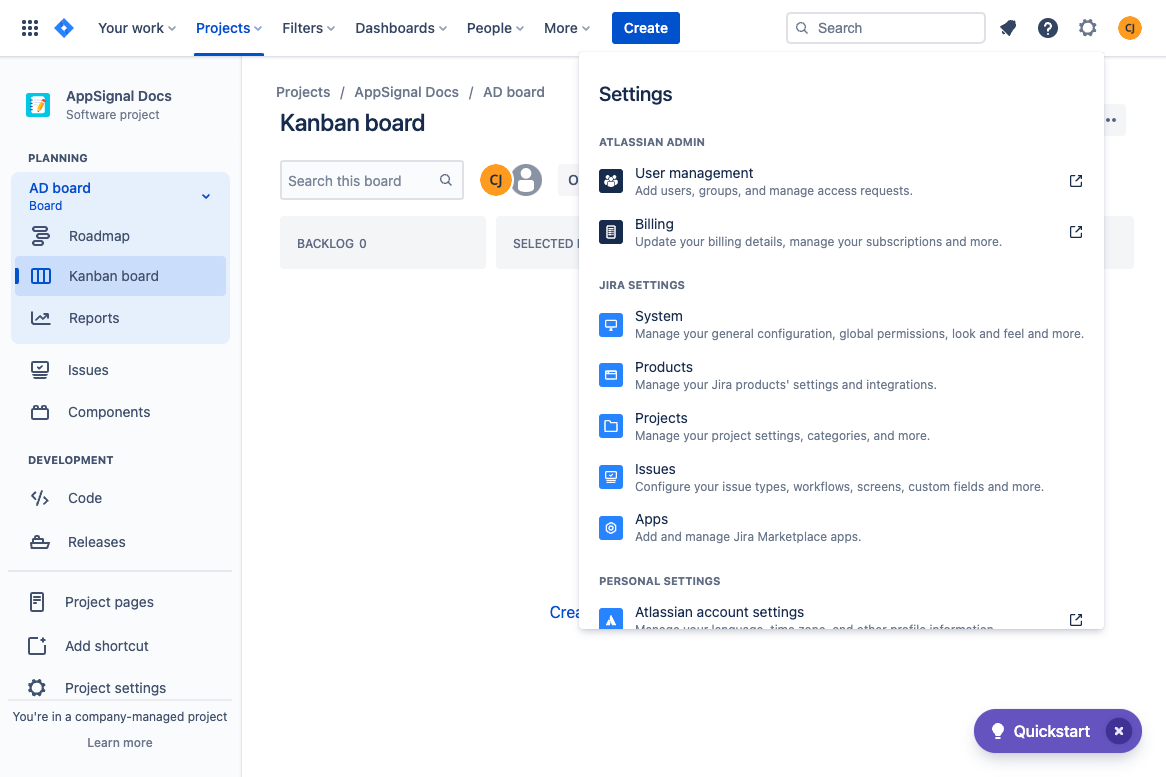
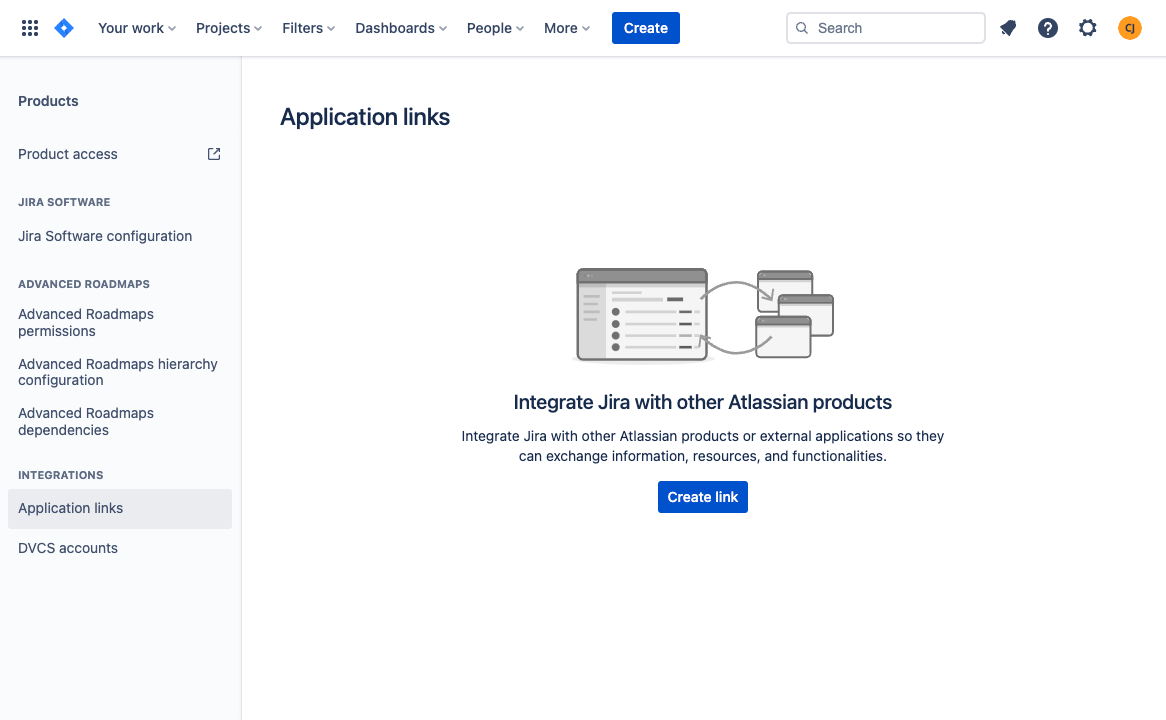
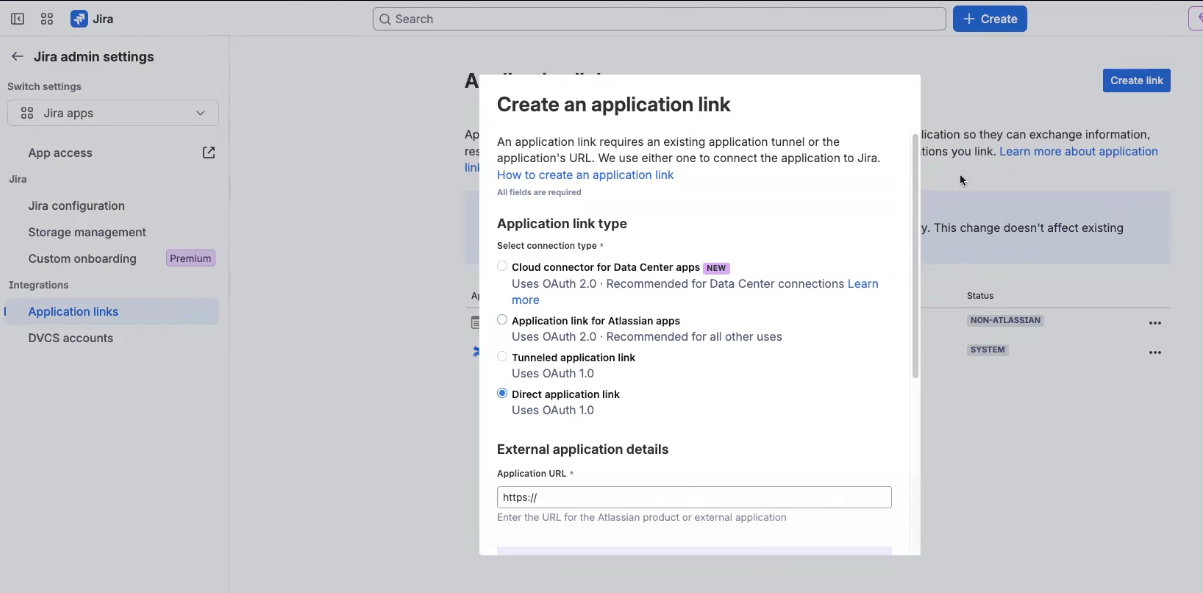
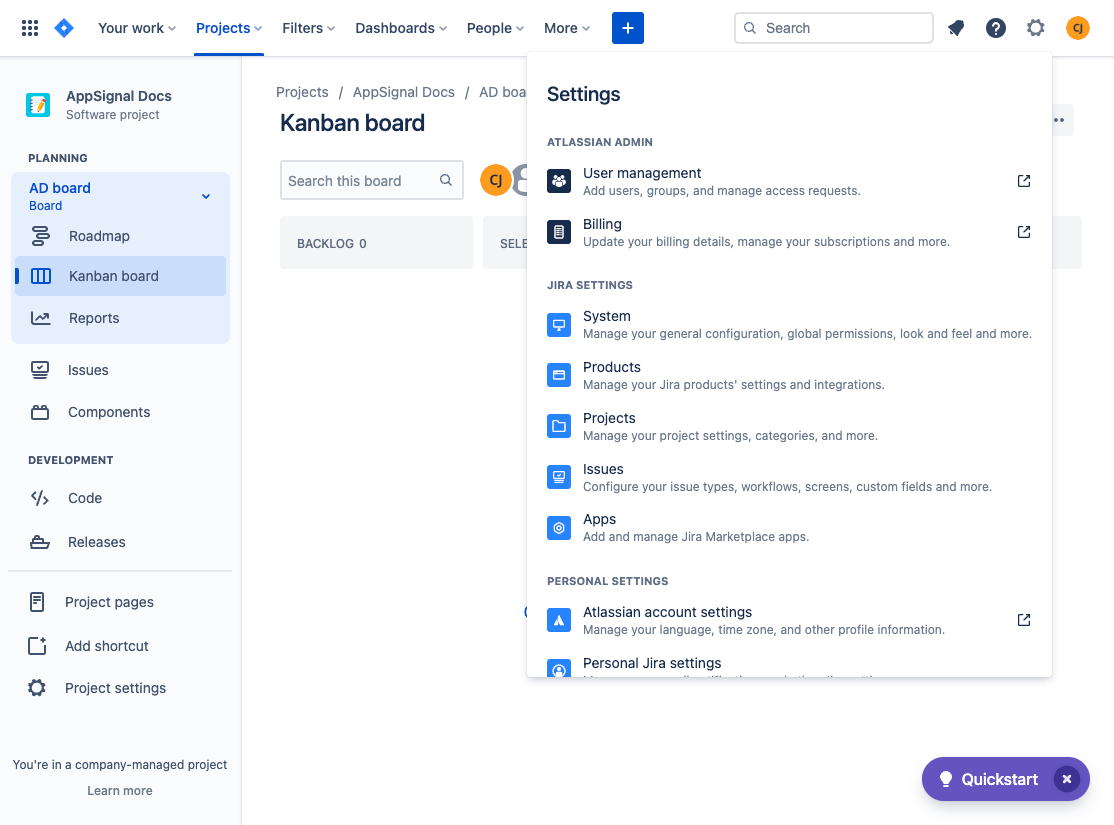
Before we can link AppSignal to Jira we need to configure Jira to accept our OAuth request.To do this, select the settings cogwheel (⚙️) in the navigation bar, then select Apps from the settings menu. In older versions of Jira, this menu item is called Products instead.Under Integrations in the side navigation, select “Application links”, then select “Create link”.Jira opens the “Create an application link” dialog, which asks for a connection type and the application’s URL:
Under Application link type, select “Direct application link”, the last of the four options, which uses OAuth 1.0. The first two options use OAuth 2.0, and “Tunneled application link” needs an existing application tunnel.
Under External application details, enter https://www.appsignal.com in the Application URL field.
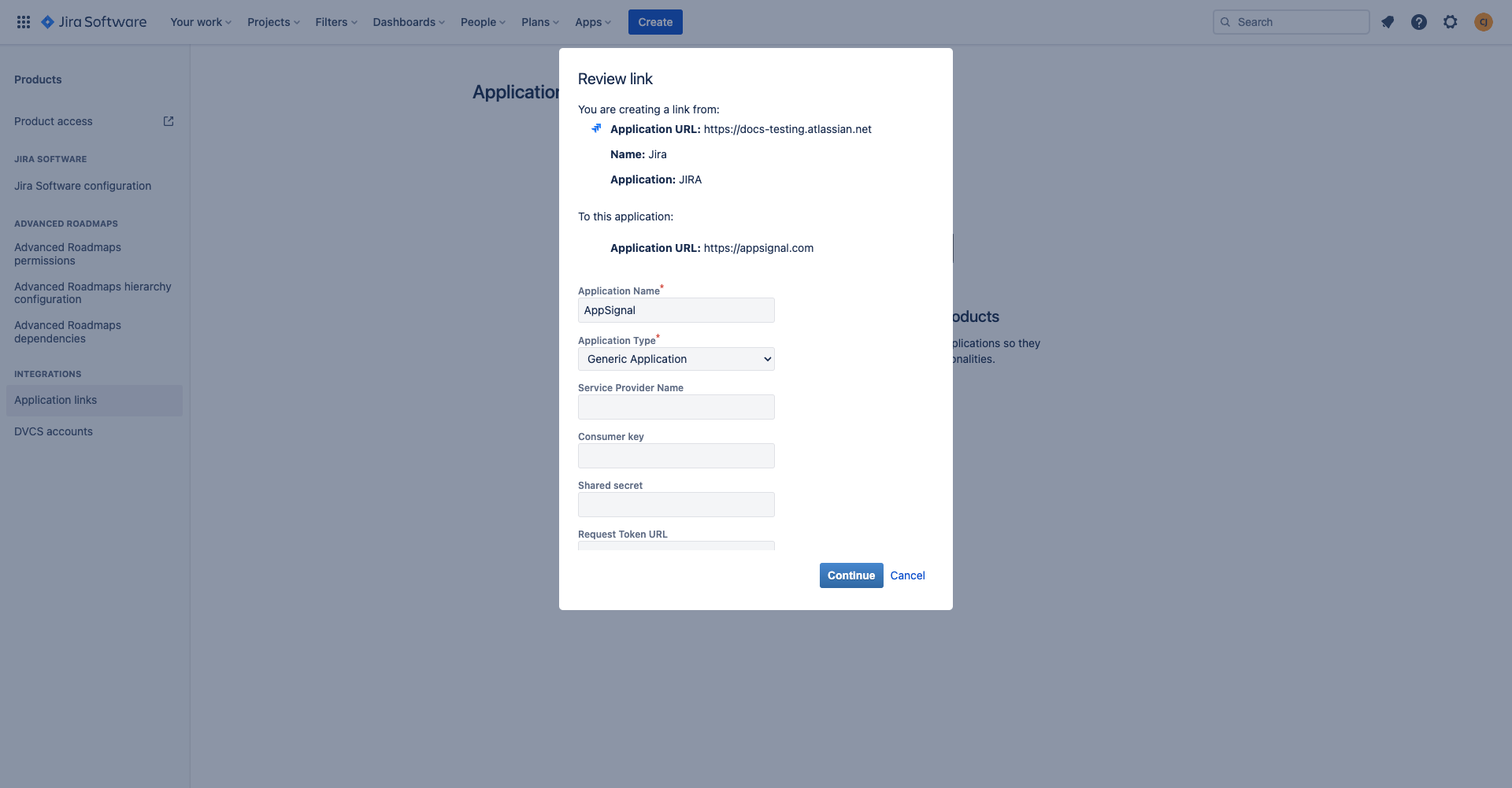
Jira may show the error: “No response was received from the URL you entered”. You may ignore this error and proceed by selecting “Continue”.You will next be presented with a Review Link screen. You only need to provide an Application name before continuing. Name the application: AppSignal, and continue.
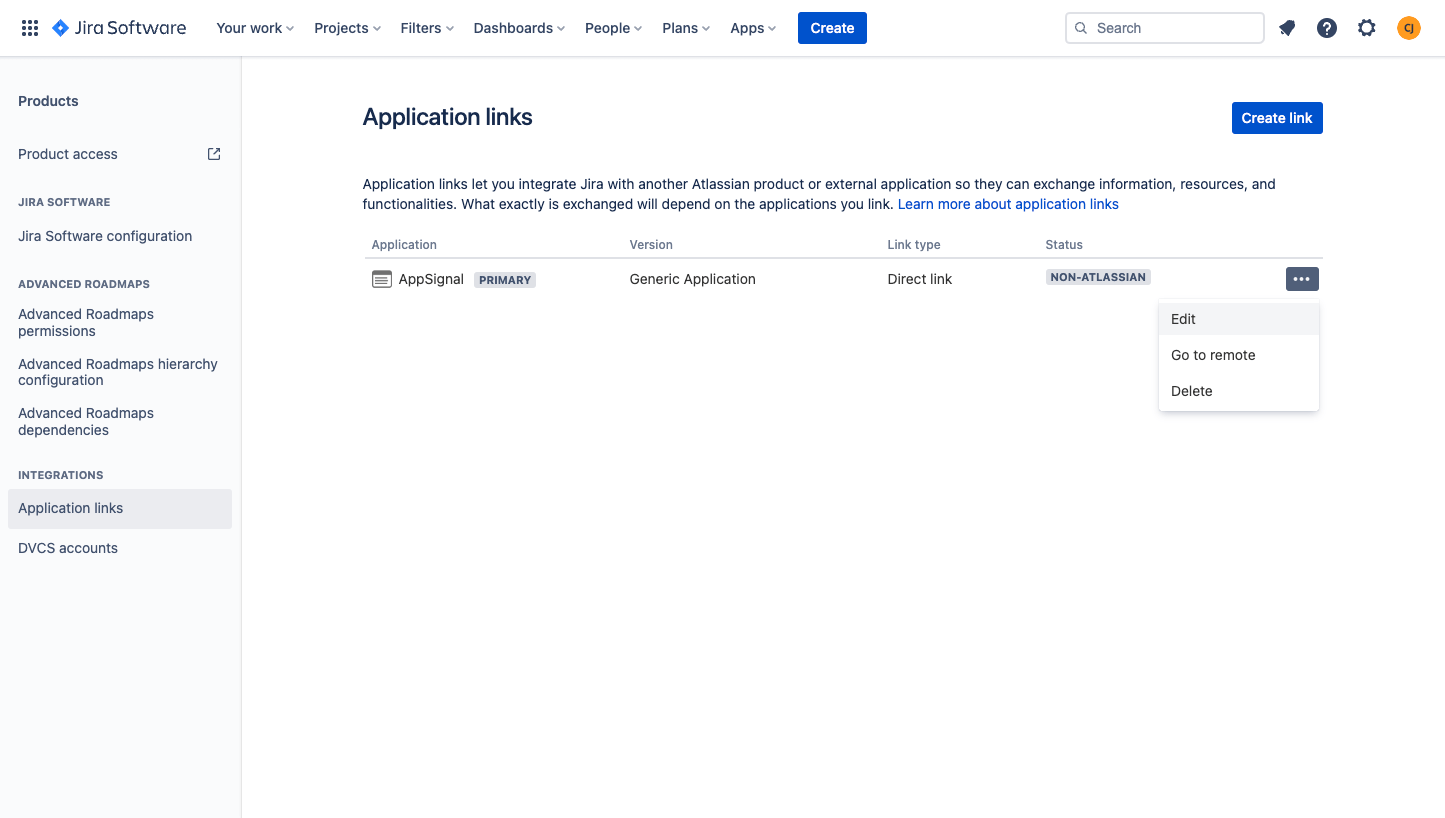
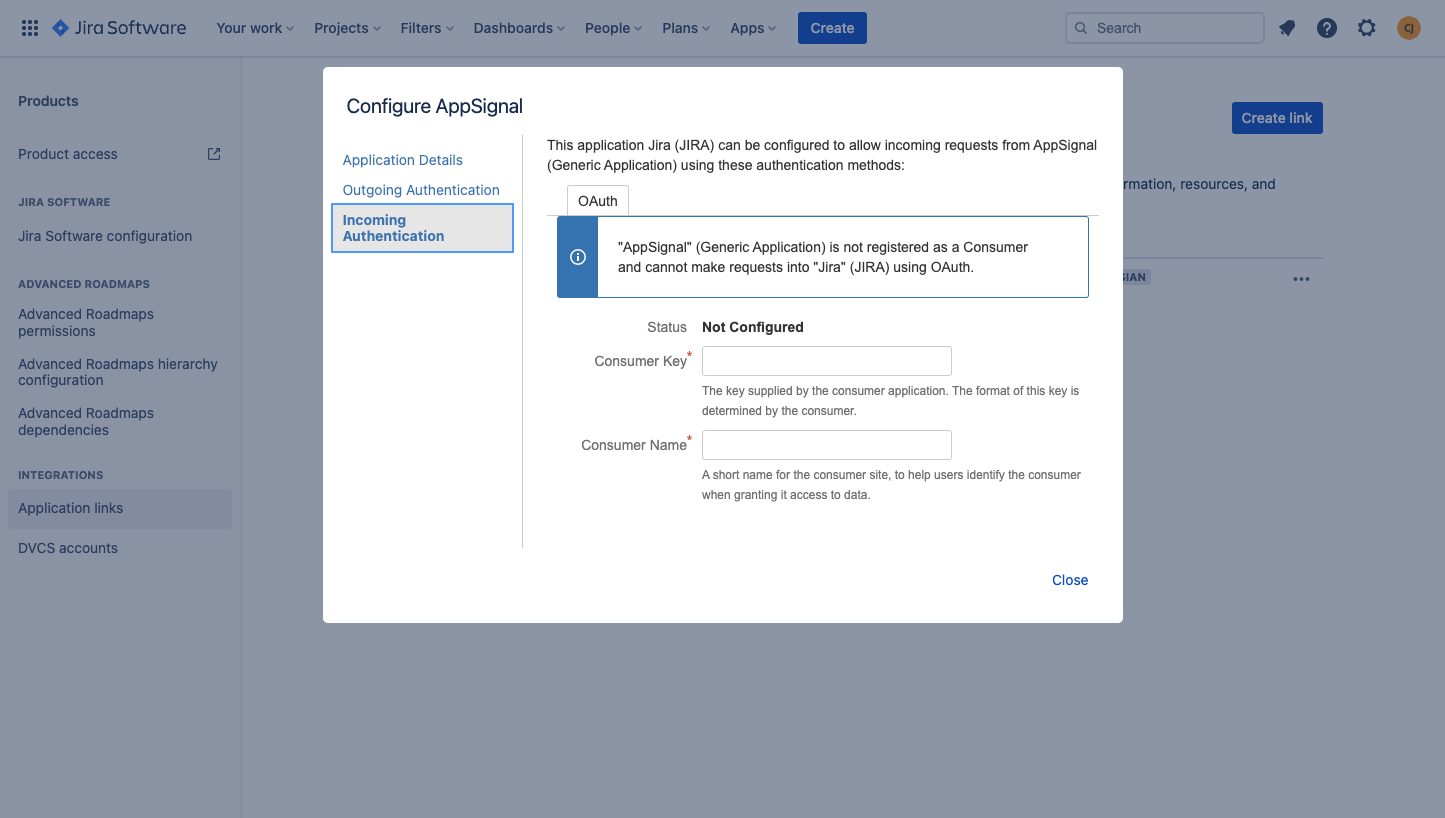
Now it’s time to configure AppSignal’s “Incoming Authentication”. To do this, navigate to “Edit” on the “Application links” screen:A “Configure AppSignal” pop-up will be opened. Navigate to “Incoming Authentication” on the left menu.In the “Incoming OAuth” tab, set up OAuth with the following values:
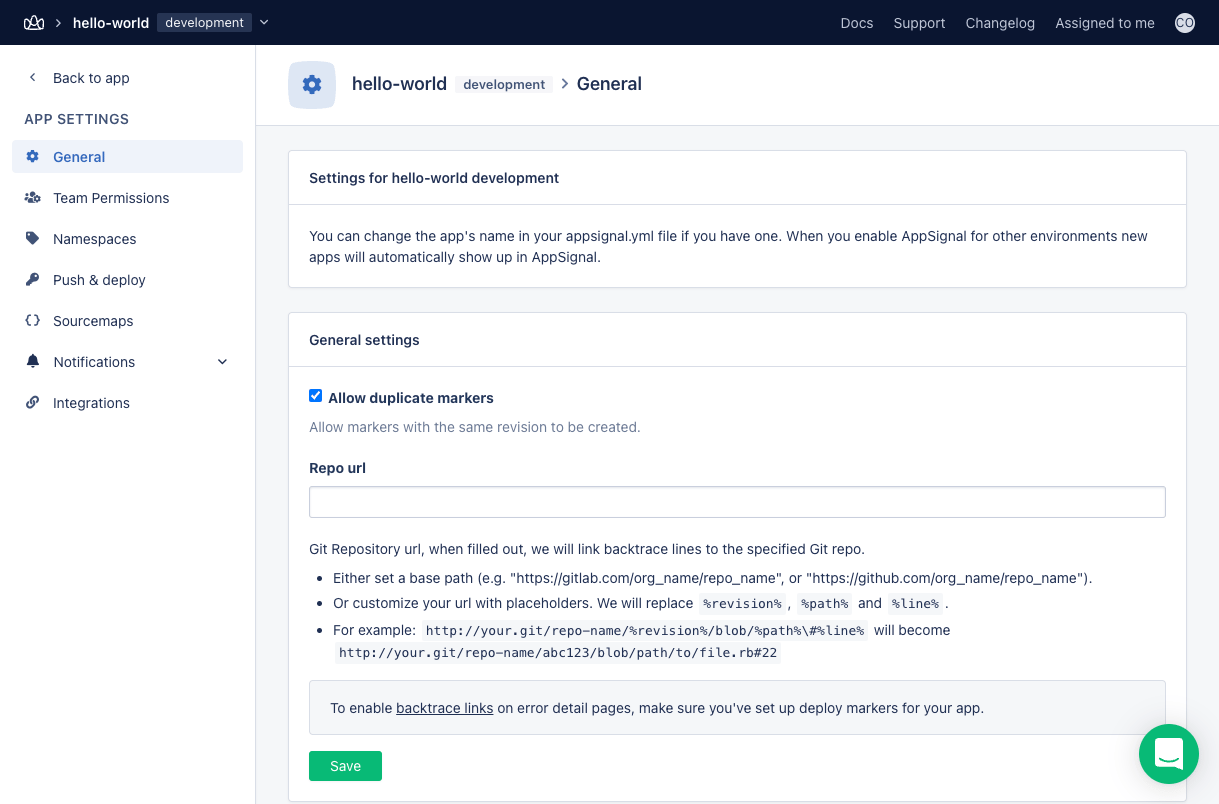
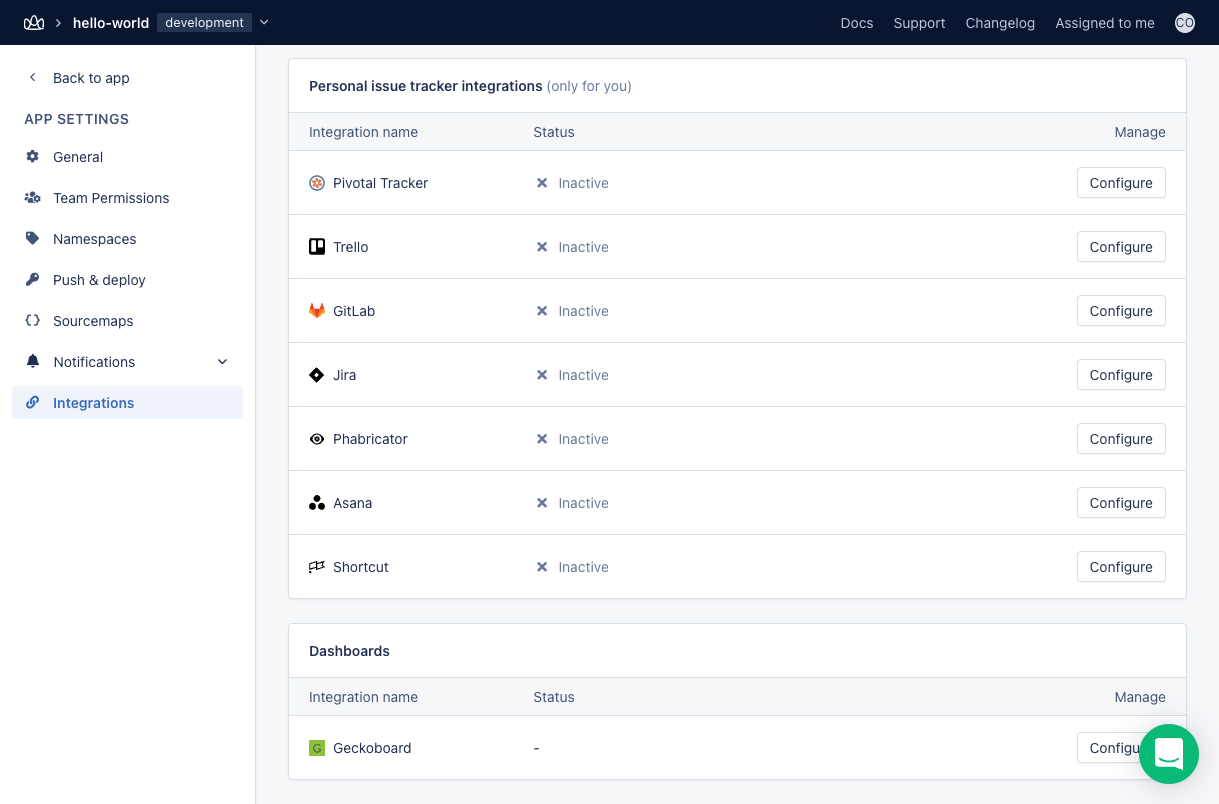
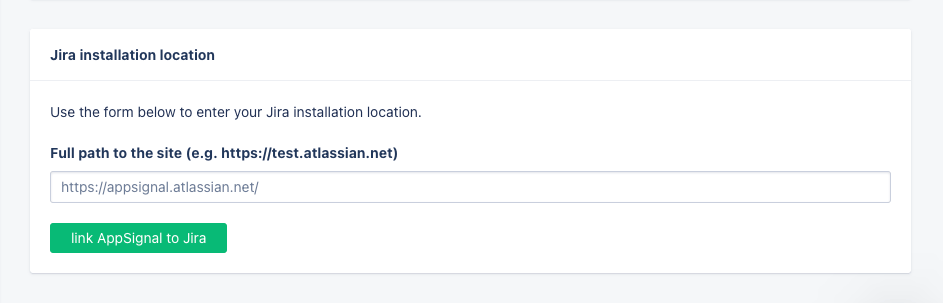
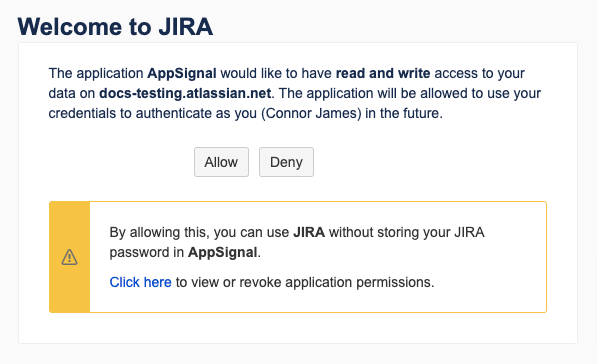
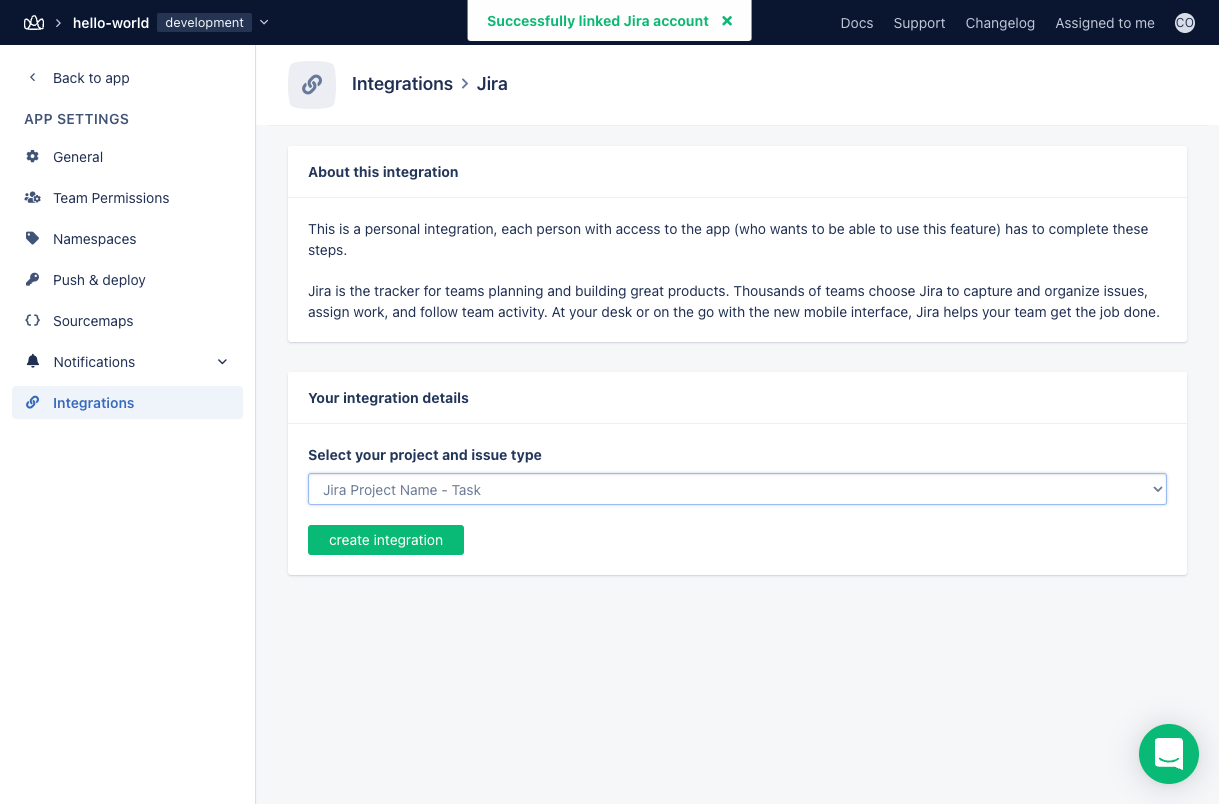
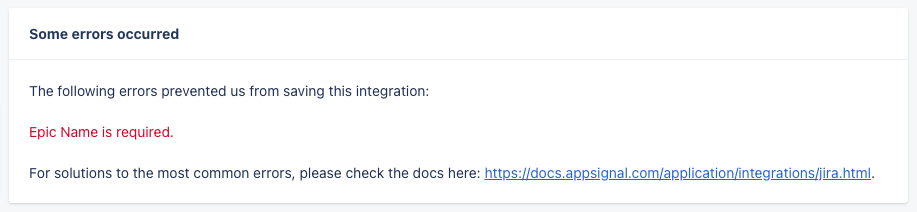
To complete the process of linking your Jira project to AppSignal, AppSignal must be configured to communicate with your Jira project.To do this, open your application in AppSignal. Click “App settings” on at the bottom of the left-hand navigation pane and then click “Integrations”:Navigate to “Personal issue tracker integrations” and click “Manage” for Jira. Alternatively, follow this link.Scroll down to “Jira installation location” and enter the URL of your Jira project, e.g.: project-name.appsignal.net, then click “link AppSignal to Jira.You’ll be presented with the following authentication screen. Click: “Allow”.You’ll return to AppSignal. Here you need to select which project and issue type you want to use for AppSignal issues. To proceed, click: “create integration”If this step produces an error message, please read the errors section for further guidance.
AppSignal requires four fields to be present in Jira:
Labels
Environment
Summary
Description
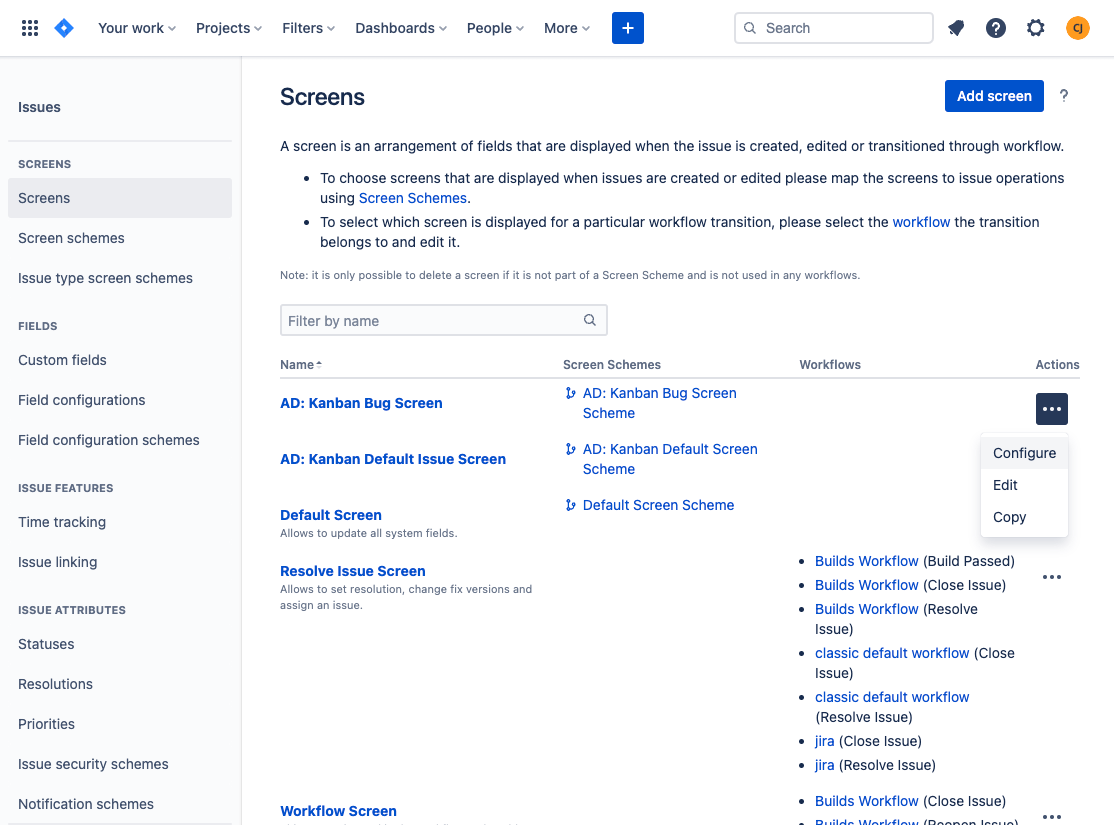
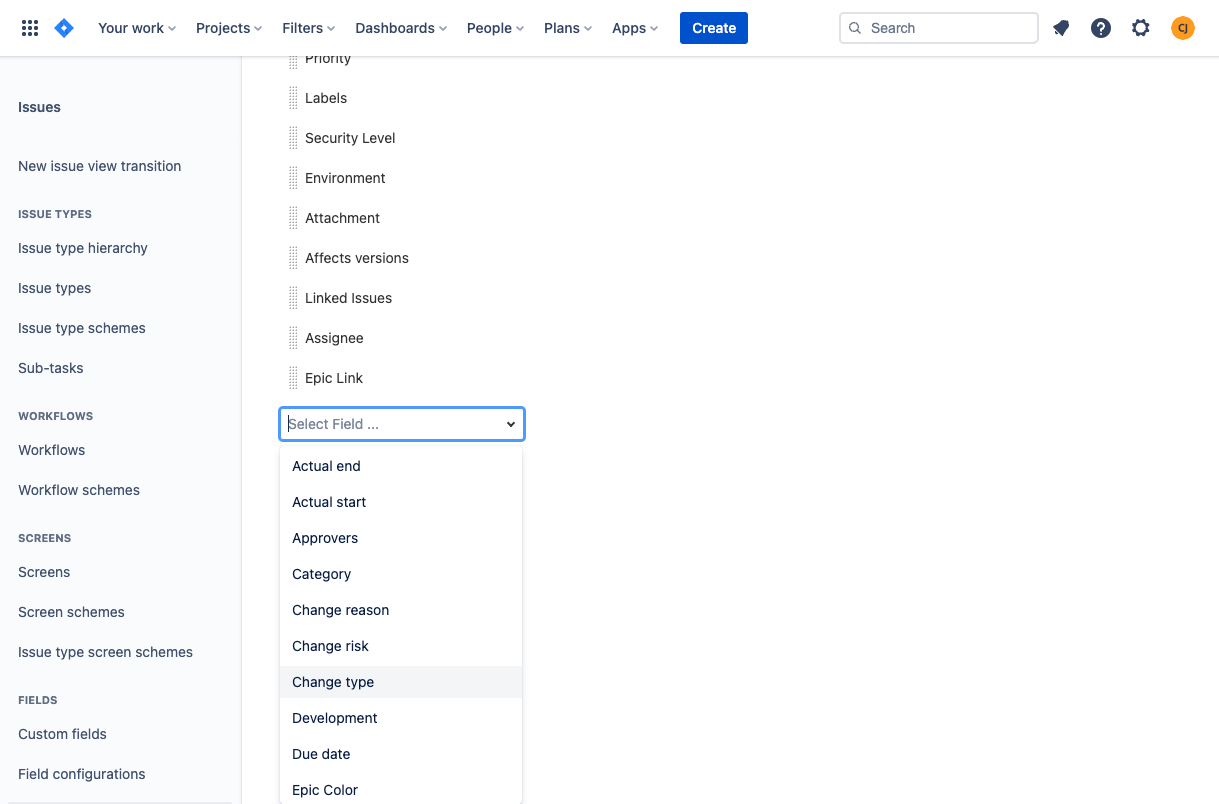
AppSignal will show an error message on completion of setup if fields are missing and specify which ones must be added in Jira.You will have to add the fields to the Jira screens by going to the “Issues” tab in the “Settings” menu:Then navigate to the “Screens” on the left navigation pane and click on “Configure” for the relevant screen:On this “Configure” page Jira will present you with a list of already configured fields. Scroll to the bottom of the page and add the missing required fields.Once all fields have been created, you should be able to resume and complete the configuration your Jira integration from the AppSignal app.