
Setting up
- API token:
- Visit your Shortcut account’s API token section: app.shortcut.com/settings/account/api-tokens
- Select Create Token and enter a name under Token Name, e.g. AppSignal.
- Under Permissions, keep Custom permissions selected and enable Read, Write, Create Stories, and Create Story Comments. AppSignal needs write access to create stories, and does not need Admin.
- Select Create Token. Shortcut displays the token once, so copy it before you close the dialog.
- Visit the AppSignal Shortcut integration page for the app you want to link.
- Paste the Shortcut API token into the “API token” field.
- Visit your Shortcut account’s API token section: app.shortcut.com/settings/account/api-tokens
- Workflow state ID
- Visit your Shortcut Workflow States settings screen: https://app.shortcut.com/settings/workflow
-
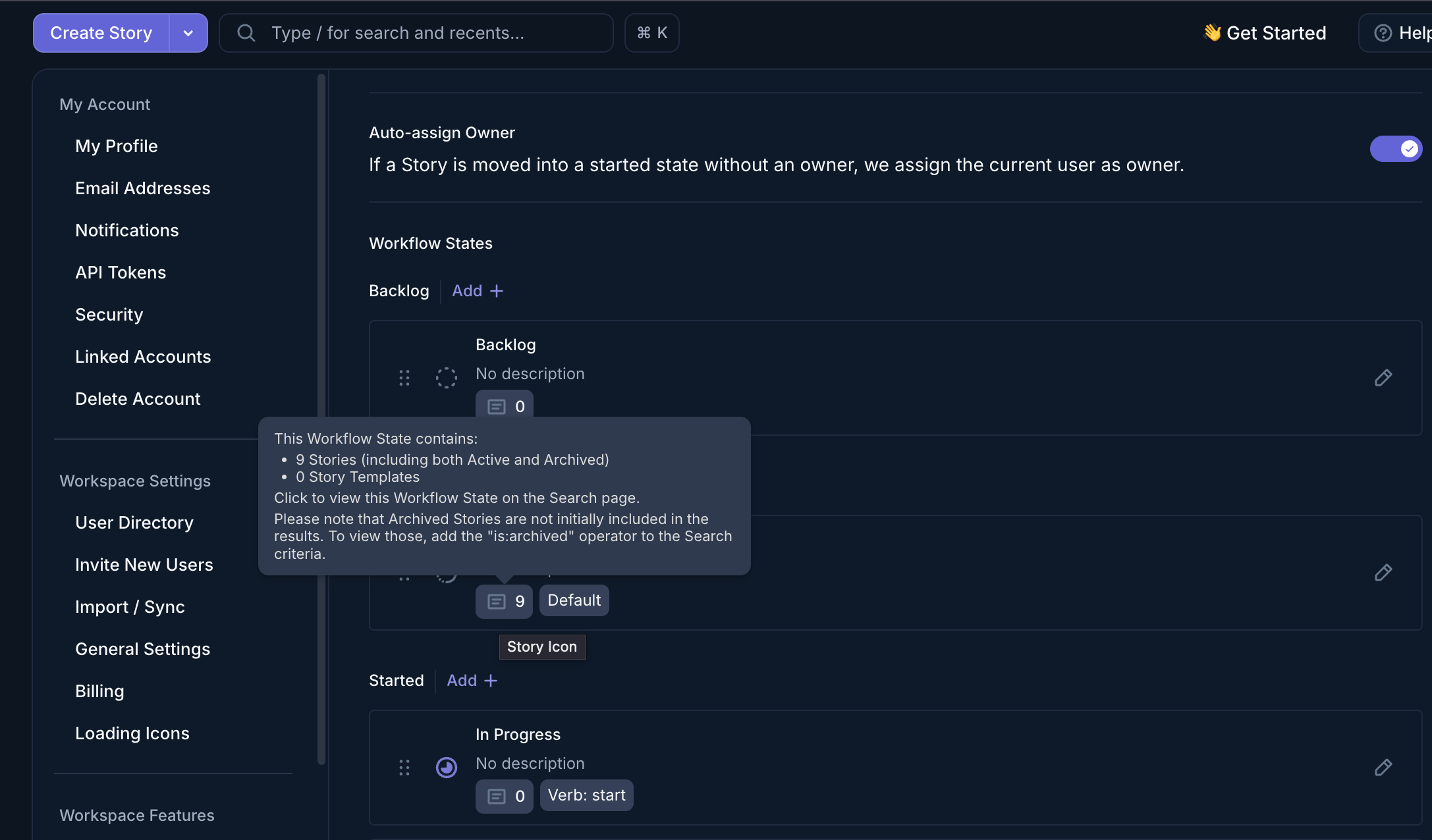
Next to the default workflow state you’d like your stories to have, select the story icon. It’s the small button showing how many stories the state contains, and its tooltip reads “Story Icon”.
-
Selecting it opens Shortcut’s Search page for that state, with a
state:query in the search field. Copy the number afterstate:, for example500000000fromstate:500000000. - Paste that number into the “Workflow State ID” field.
-
Next to the default workflow state you’d like your stories to have, select the story icon. It’s the small button showing how many stories the state contains, and its tooltip reads “Story Icon”.
- Visit your Shortcut Workflow States settings screen: https://app.shortcut.com/settings/workflow
- Select the “create integration” button.
Create Shortcut stories for incidents
Once Shortcut is connected, you can create a Shortcut story for an error incident:- Open the error incident’s details screen.
- In the Actions panel, select Send to Shortcut.